Find anything you’ve ever copied
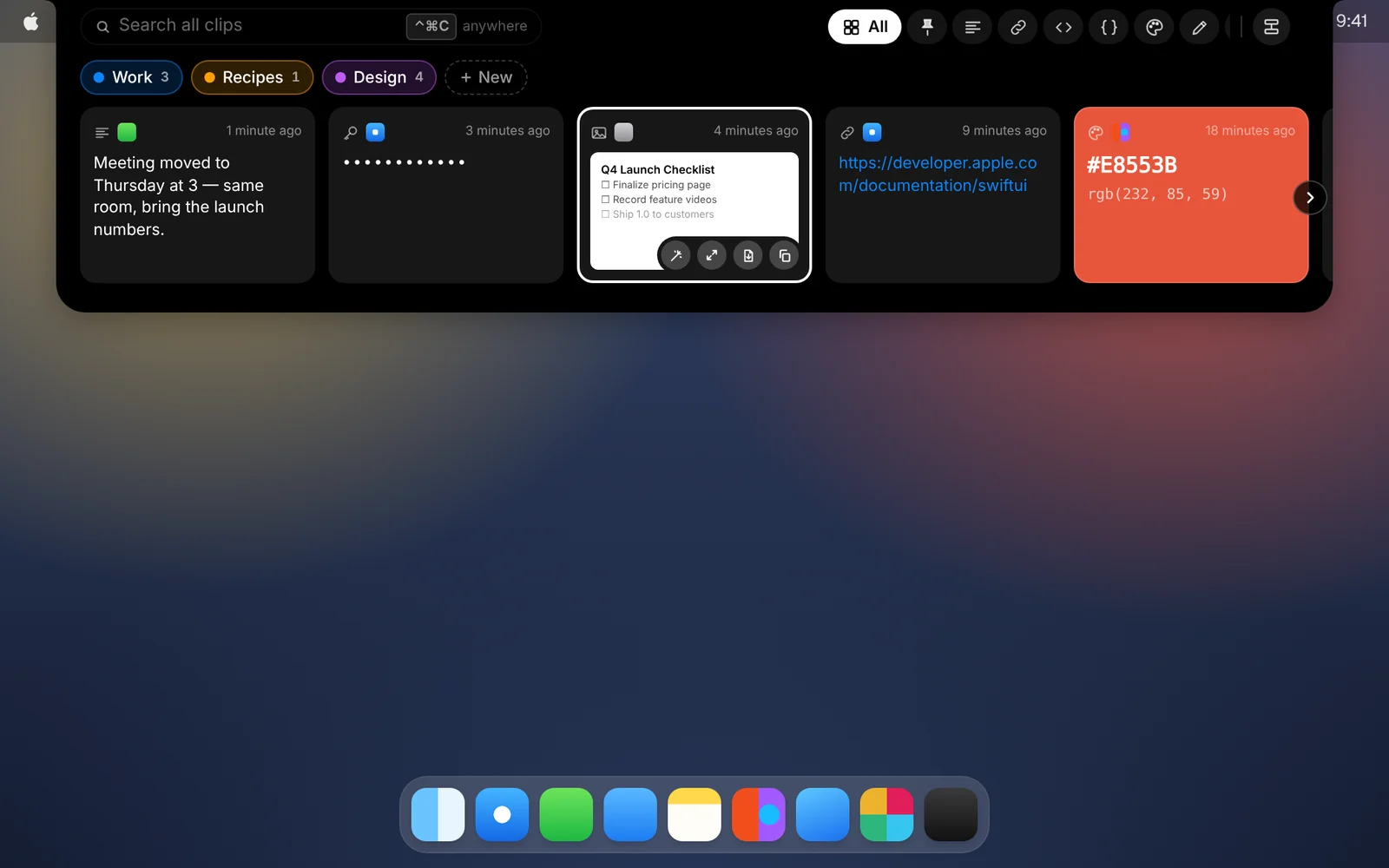
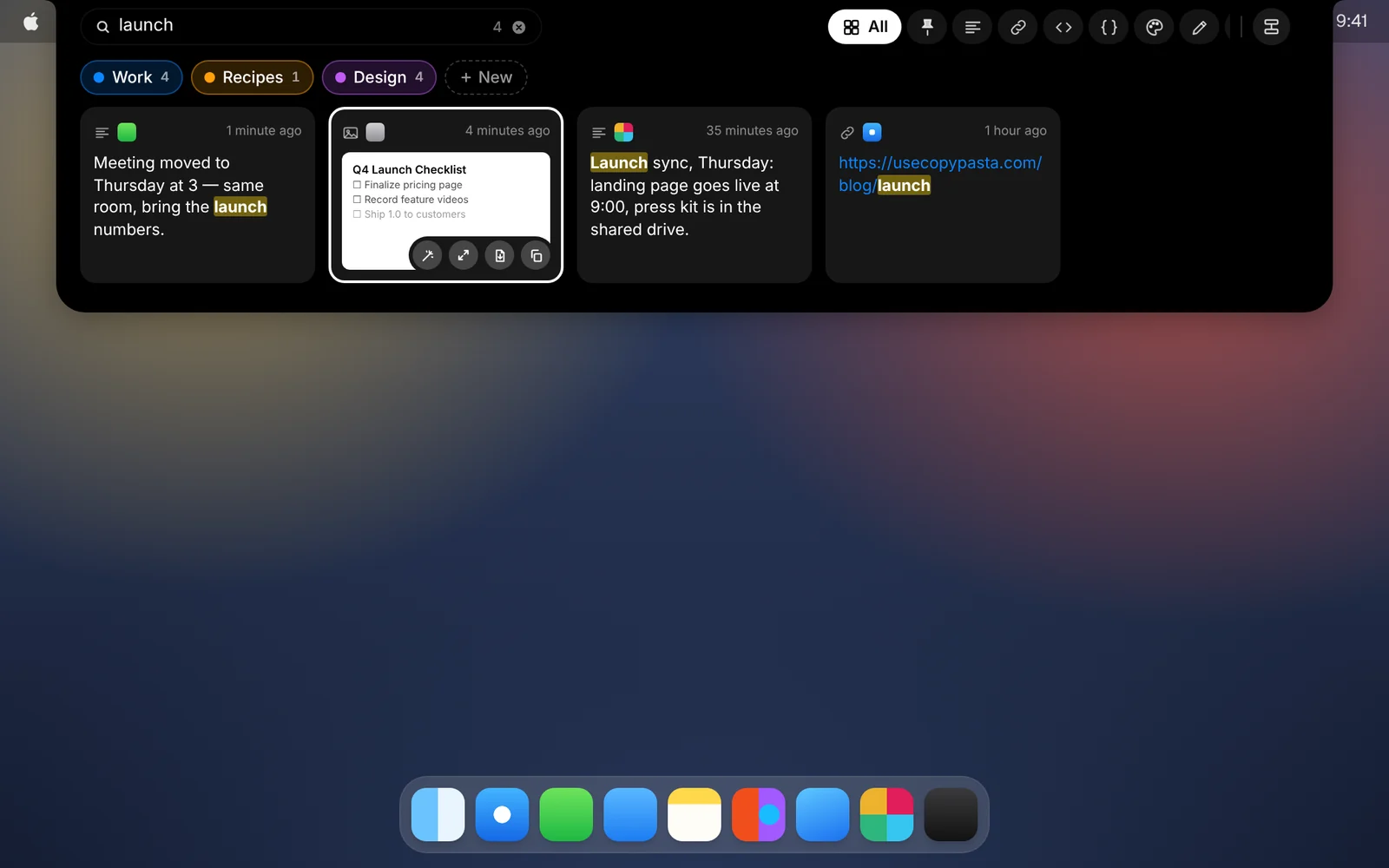
Open CopyPasta and start typing. Search covers your whole history, including the text inside screenshots.
Amas
· 1 min read
That link from last week, the address you copied yesterday, the error message in a screenshot: they’re all in your history. Finding them takes a couple of letters.
How it works
- Open CopyPasta from the notch, or press ⌃⌘C.
- Start typing. There’s no search field to click first.
- Matches appear as you type, with the matching words highlighted.
- Press ↩ to paste the top result, or use the arrow keys to pick another one.
What search looks at
- The text of every clip, from notes to code to links.
- The text CopyPasta recognized in your screenshots and images.
- File names, the app you copied from, and the category a clip is in.
Capitals and accents don’t matter, so “cafe” finds “Café”.
Narrow it down
- Use the tabs next to the notch to show only text, links, code, JSON, colors, vectors, images or files.
- Click a category, or use the filter button to show clips from one app.
- For a bigger view, choose Open Library from the menu bar icon (⌘L) to browse your whole history in a window.
Passwords and secrets that CopyPasta has hidden are left out of search, so typing a guess can’t confirm one.
Download CopyPasta and try every feature free for 7 days. No account, no credit card.