Gather a few clips, paste them all at once
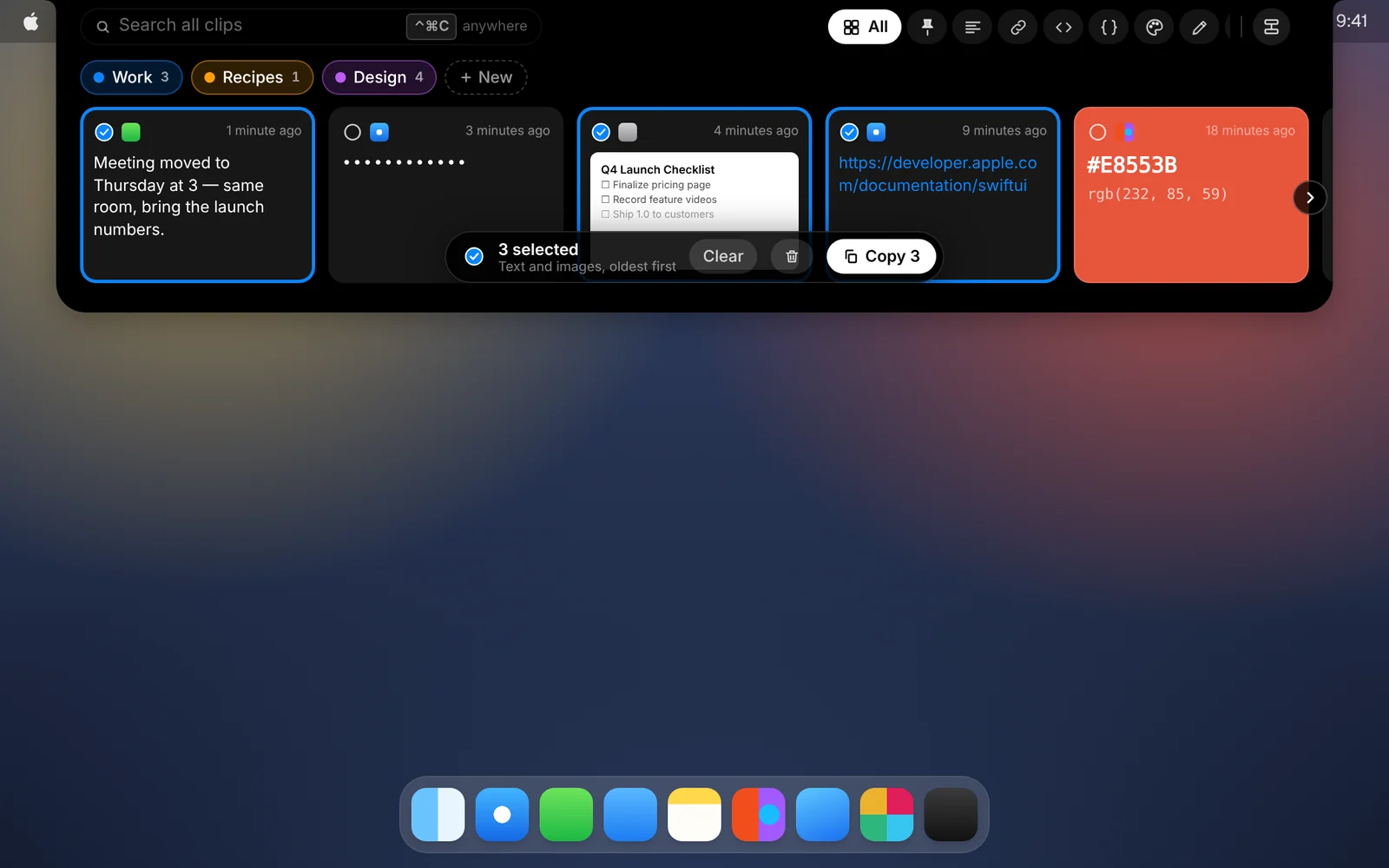
Select several cards, say a quote, a link and a screenshot, and paste them together in the order you copied them.
Amas
· 2 min read
Writing an email or a report often means collecting bits from all over: a sentence here, a link there, a screenshot from earlier. With CopyPasta you can collect them first and paste them in one go.
How it works
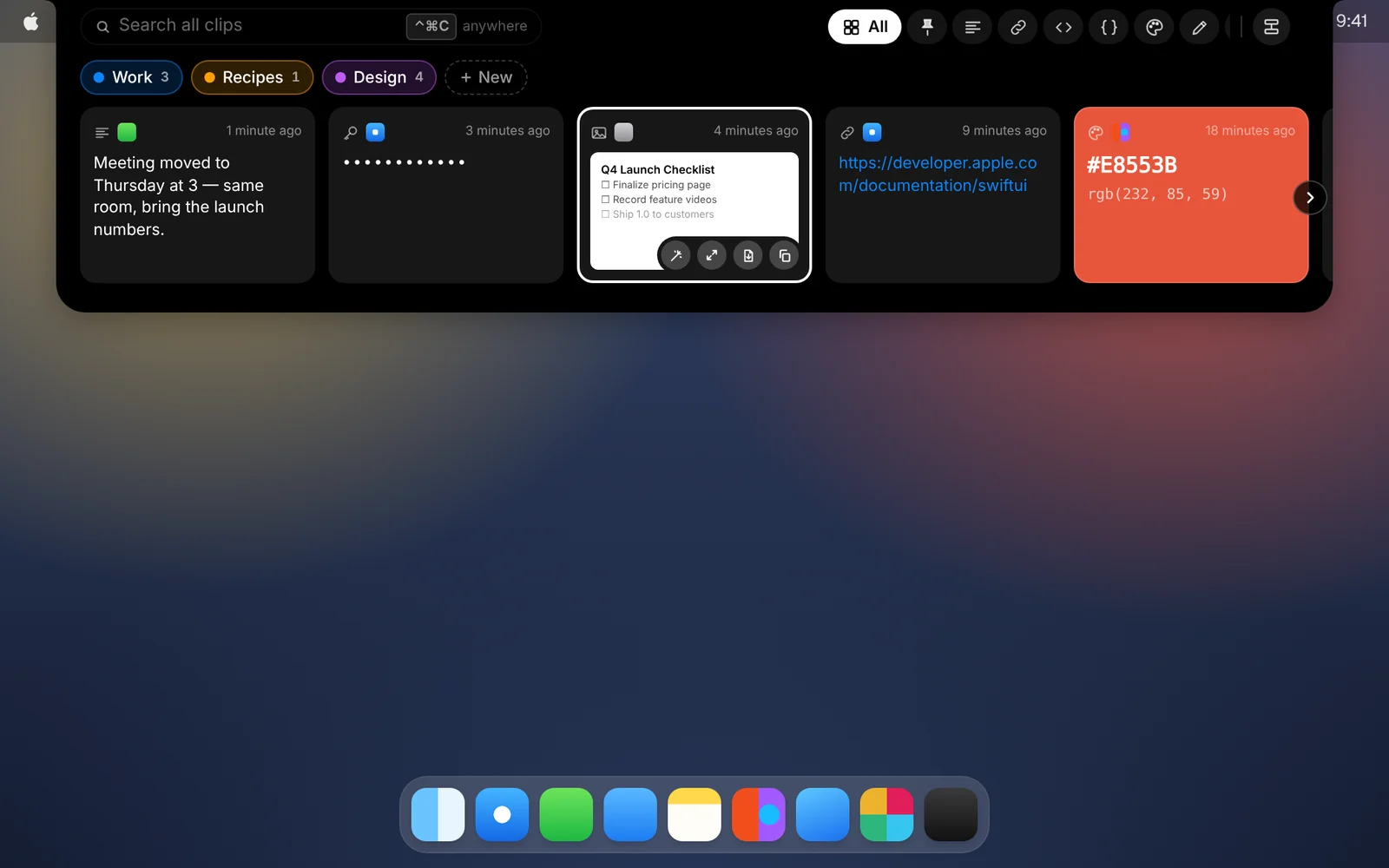
- Open CopyPasta and hover over a card. Its icon turns into a circle.
- Click the circle, or ⌘-click the card, to select it. Do the same for every clip you want.
- Press ⌘C to copy them all, or ↩ to paste them straight into the app you were using.
The clips arrive oldest first, one per line, with images pasted as images wherever the app accepts them.
Good to know
- Select faster. ⇧-click, or hold ⇧ with the arrow keys, to extend the selection. ⌘A selects every card.
- Collect from anywhere. Your selection stays as you switch tabs and search, so you can pick clips from across your whole history.
- Screenshots bring their text. Where only text can be pasted, a screenshot pastes the text recognized in it.
- File them together. Drag the selection onto a category to file every card at once, or press ⌘⌫ to delete them.
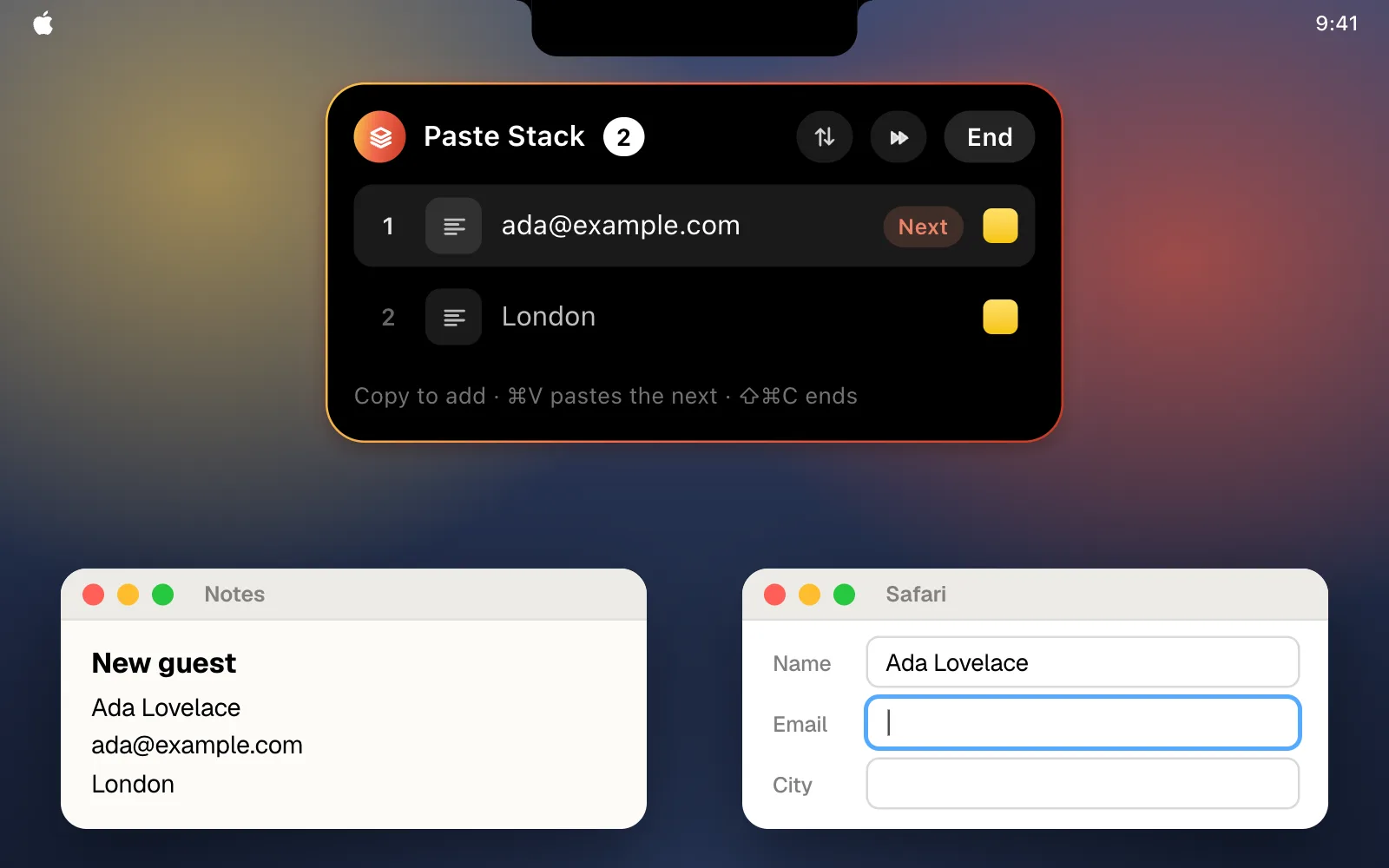
- Or paste them one at a time. Click Stack to put the selection in a Paste Stack, where each ⌘V pastes the next clip.
Download CopyPasta and try every feature free for 7 days. No account, no credit card.