You decide what CopyPasta saves
Pause capture, ignore certain apps, choose how much to keep, and sync between your Macs with your history encrypted all the way.
Amas
· 2 min read
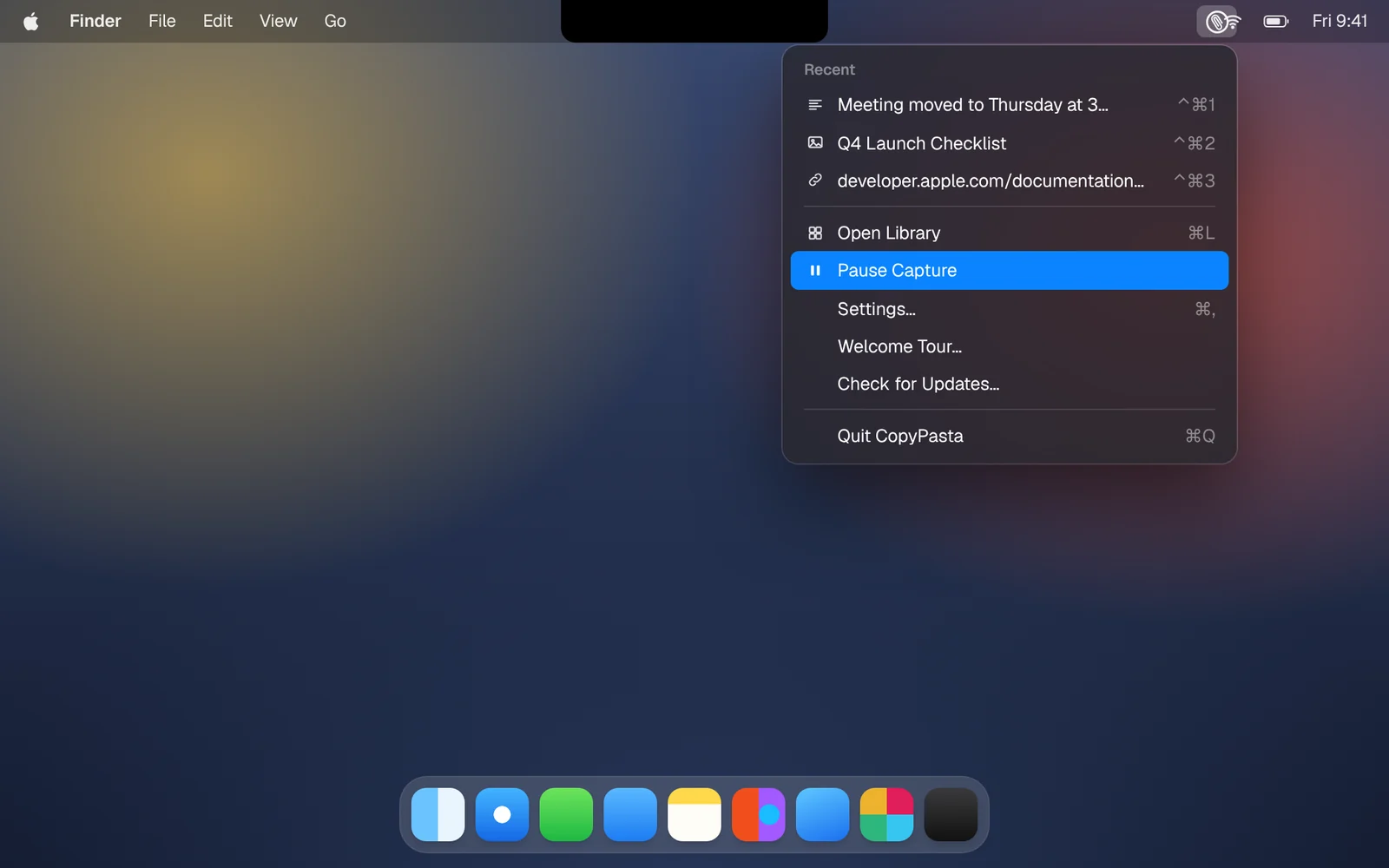
Your clipboard holds addresses, bank details and private notes. CopyPasta is built so you stay in control of all of it.
Choose what’s saved
- Pause capture. Click the CopyPasta icon in the menu bar and choose Pause Capture. Nothing is saved until you resume.
- Ignore apps. In Settings, add apps under Never save copies from, and nothing you copy in them is saved.
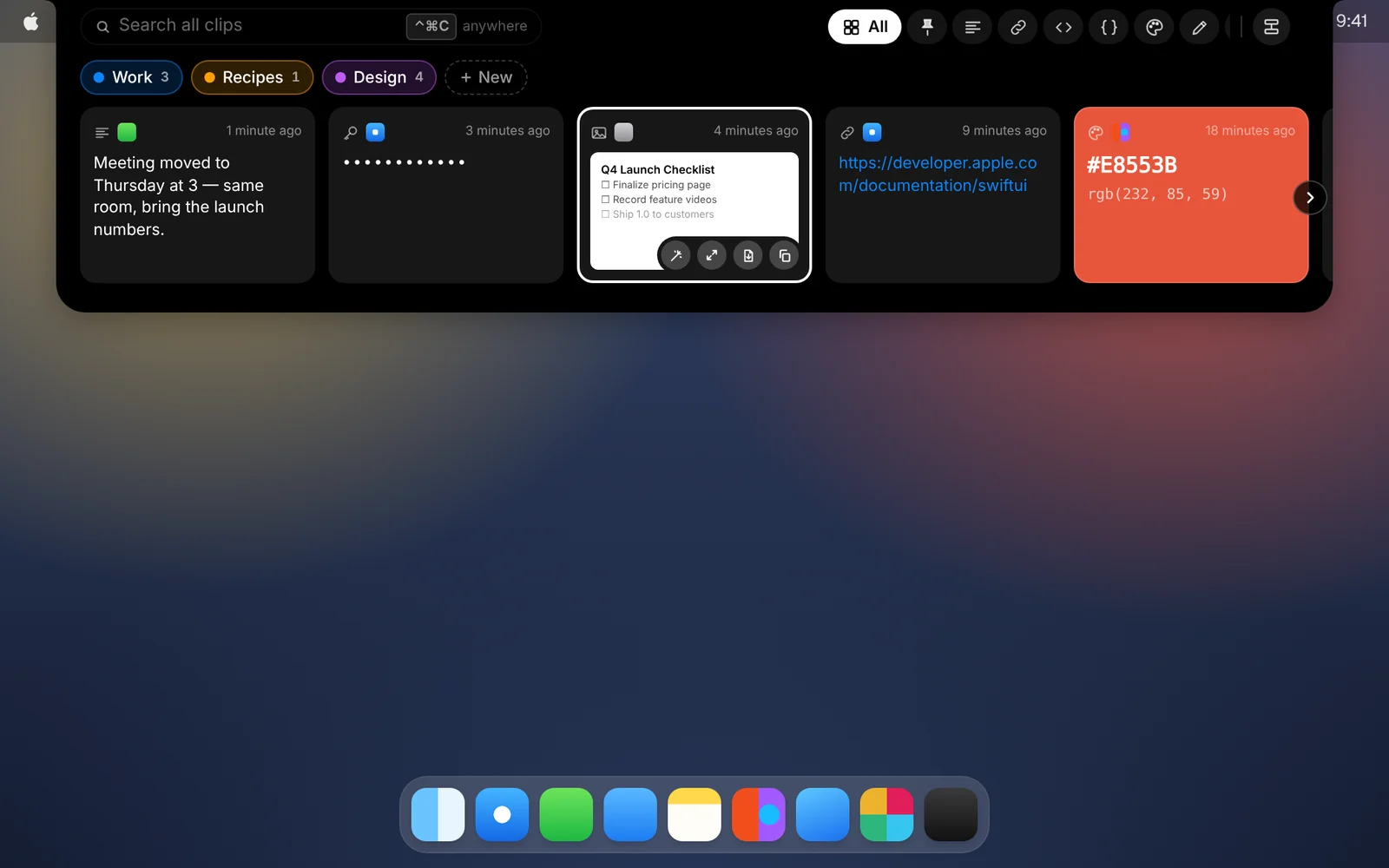
- Skip password managers. Copies that 1Password, Bitwarden or Passwords mark as private are never saved.
- Keep only what you want. Keep your last 100 to 10,000 clips, or everything. Clear your history any time in Settings.
Encrypted on your Mac
Your history is encrypted with AES-256, and the key is kept in your Keychain. Without the key, the history can’t be read.
Synced through your own iCloud
Turn on Sync history with iCloud in Settings on each Mac, and your clips, pins and categories appear on every Mac signed in to your Apple Account.
- Your history stays encrypted in iCloud. The key reaches your other Macs through iCloud Keychain.
- Clips that look like passwords stay hidden on your other Macs too.
- There’s no CopyPasta account and no CopyPasta server holding your history.
No analytics
CopyPasta doesn’t track how you use it. The only things it sends are your license key when you activate it, and update checks.
Download CopyPasta and try every feature free for 7 days. No account, no credit card.