Turn a screenshot into a post-ready image
Put any screenshot on a background, sized for X, Instagram, LinkedIn and more, then copy it and paste it anywhere.
Amas
· 1 min read
A plain screenshot looks fine in a chat. For a post, a slide or a launch announcement, it deserves a little more. Beautify gets you there in seconds.
How it works
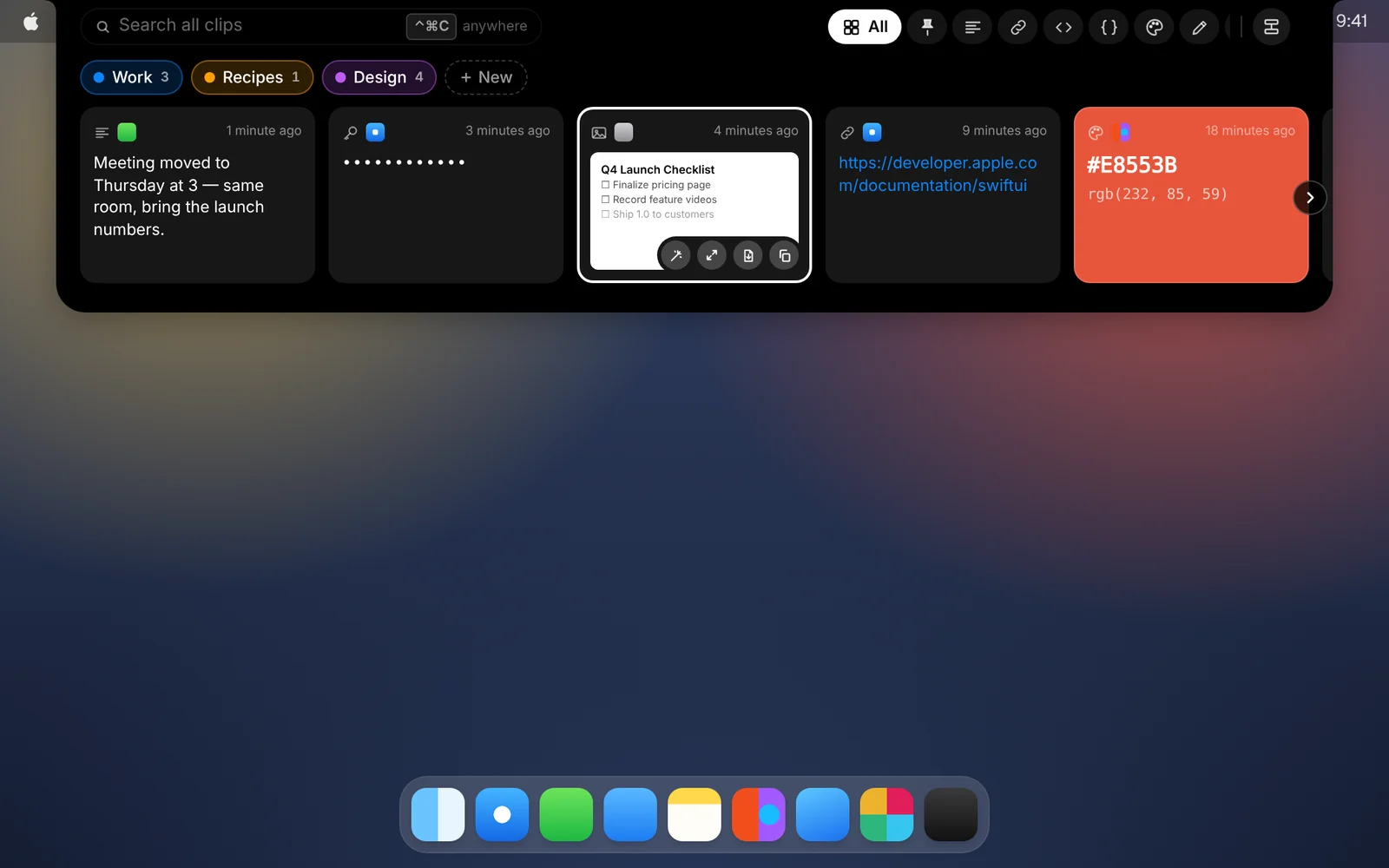
- Hover over a screenshot’s card in CopyPasta and click the wand, or press ⌘B in its window.
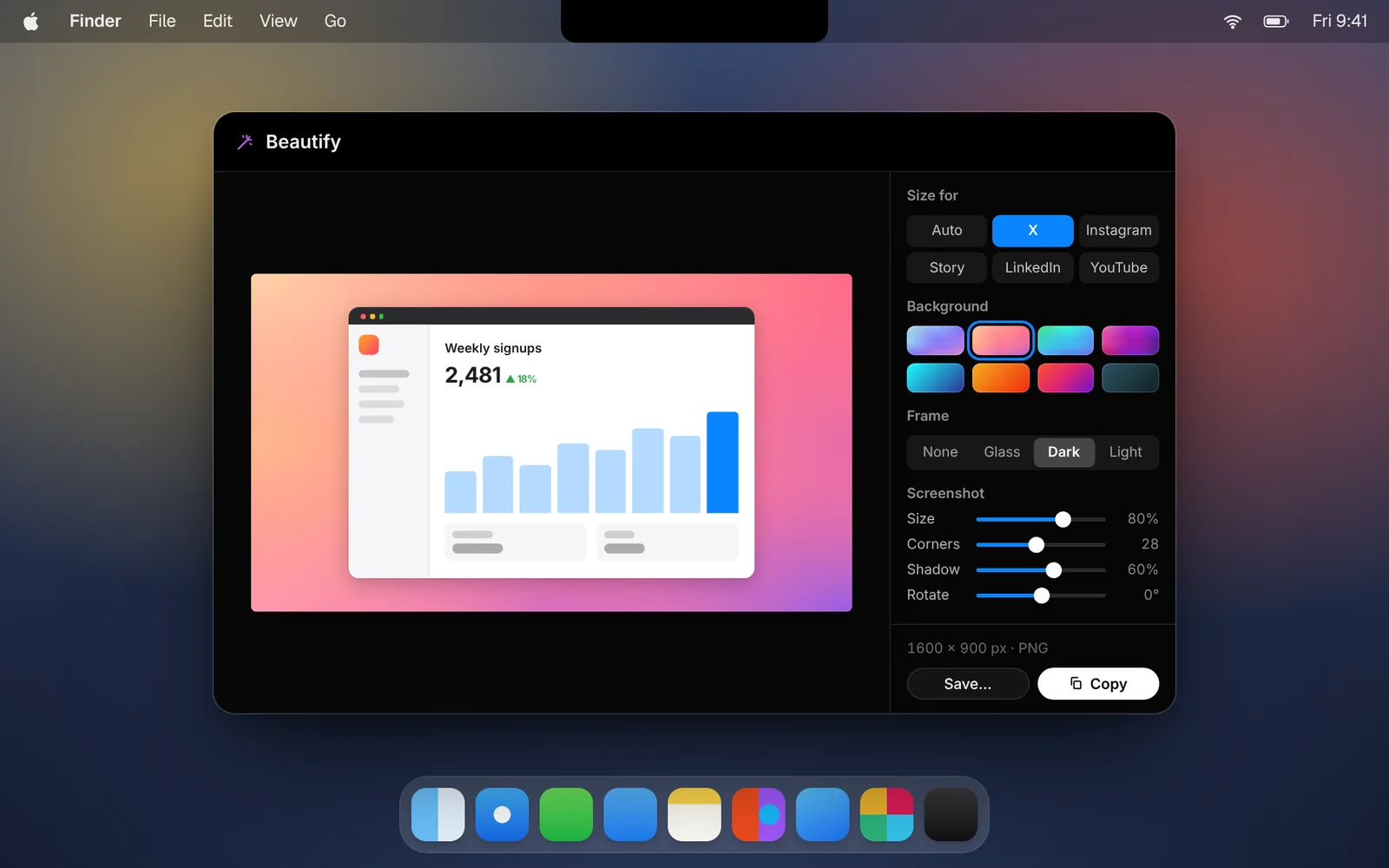
- Choose a size: Auto keeps the screenshot’s own shape, or pick a preset for X, Instagram, Portrait, Story, LinkedIn, Facebook, YouTube or Dribbble.
- Pick a background, a pattern and a frame, and adjust the size, corners, shadow and rotation.
- Click Copy and paste it wherever you’re posting, or Save it as a PNG.
Good to know
- Plenty to choose from. Gradients, solid colors, a blurred copy of the screenshot itself, your own image, or a transparent background.
- Frames. Show the screenshot as it is, behind glass, or in a dark or light window.
- Move it around. Drag the screenshot on the canvas to place it exactly where you want.
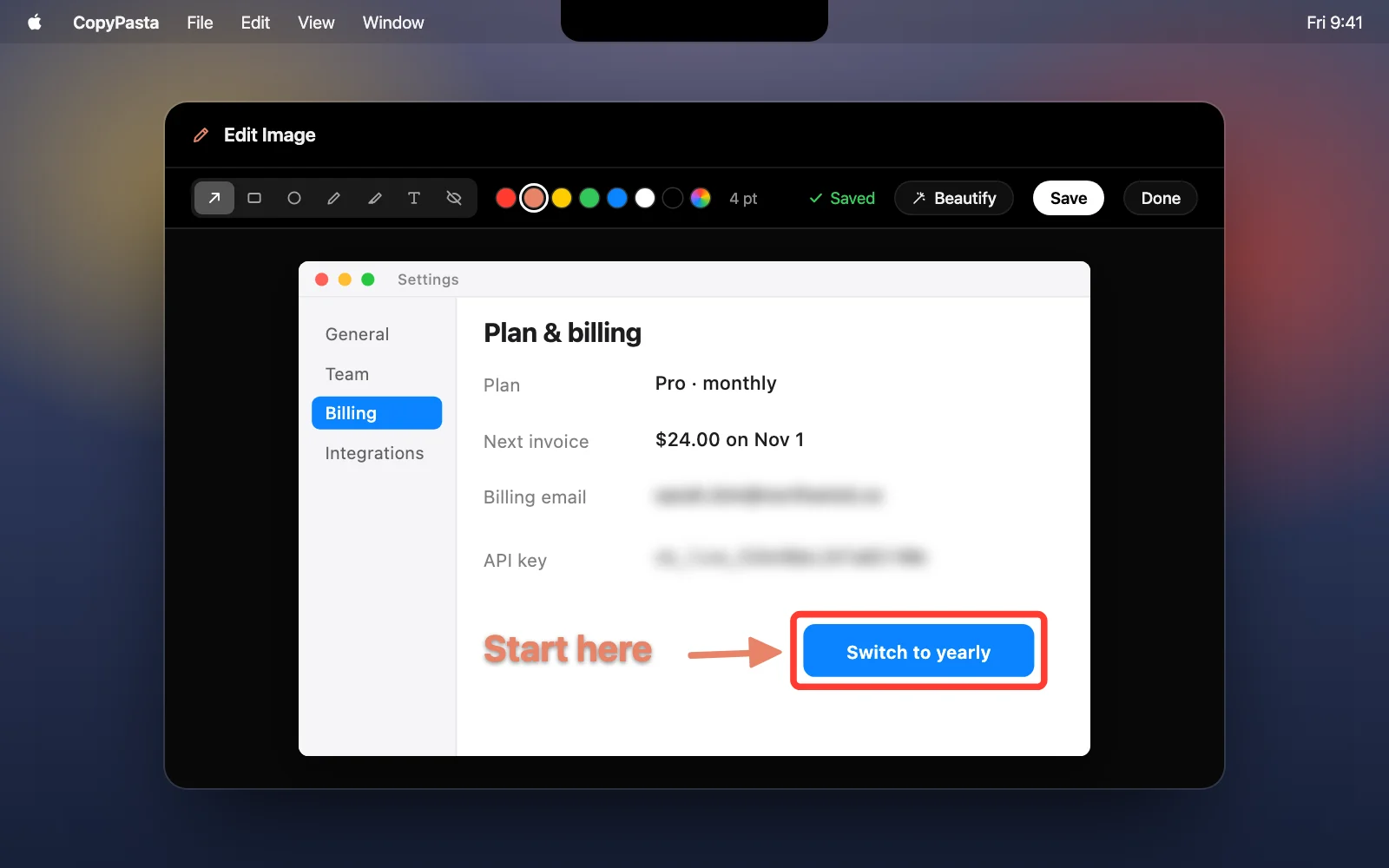
- Mark it up first. Point at something or blur private details in the image editor, then click Beautify there to carry on.
- Find it again. Every image you copy from Beautify is saved to your history too.
Download CopyPasta and try every feature free for 7 days. No account, no credit card.