Introducing CopyPasta: the clipboard manager that lives in your notch
CopyPasta keeps everything you copy, reads the text in your screenshots and brings it all back from the notch in a keystroke. Private by default.
· 6 min read
Your clipboard is the busiest tool on your Mac, and it forgets almost everything. Copy a link, then a sentence, then a screenshot, and the link is gone. CopyPasta fixes that. It keeps everything you copy, waits quietly in your Mac’s notch, and brings any of it back in a couple of keystrokes.
Here’s a tour of what it does, and why we built it to be private from the very first copy.
It keeps everything, exactly as you copied it
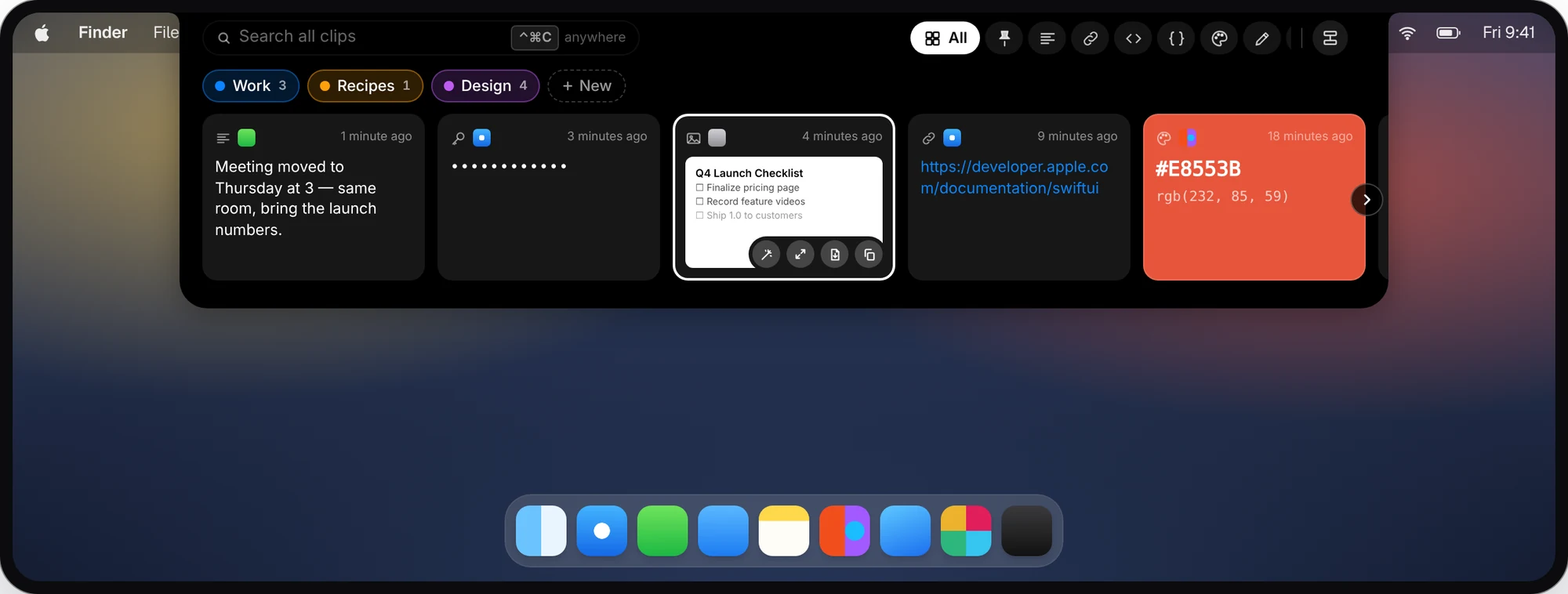
Text, links, code, JSON, colors, images, files, screenshots and vector graphics are saved the moment you copy them. Each gets its own card and preview: code is highlighted, JSON is formatted, and colors show up filled with the color itself. Nothing gets flattened along the way: shapes copied from apps like Photoshop or Affinity stay crisp vectors, not blurry pixels.
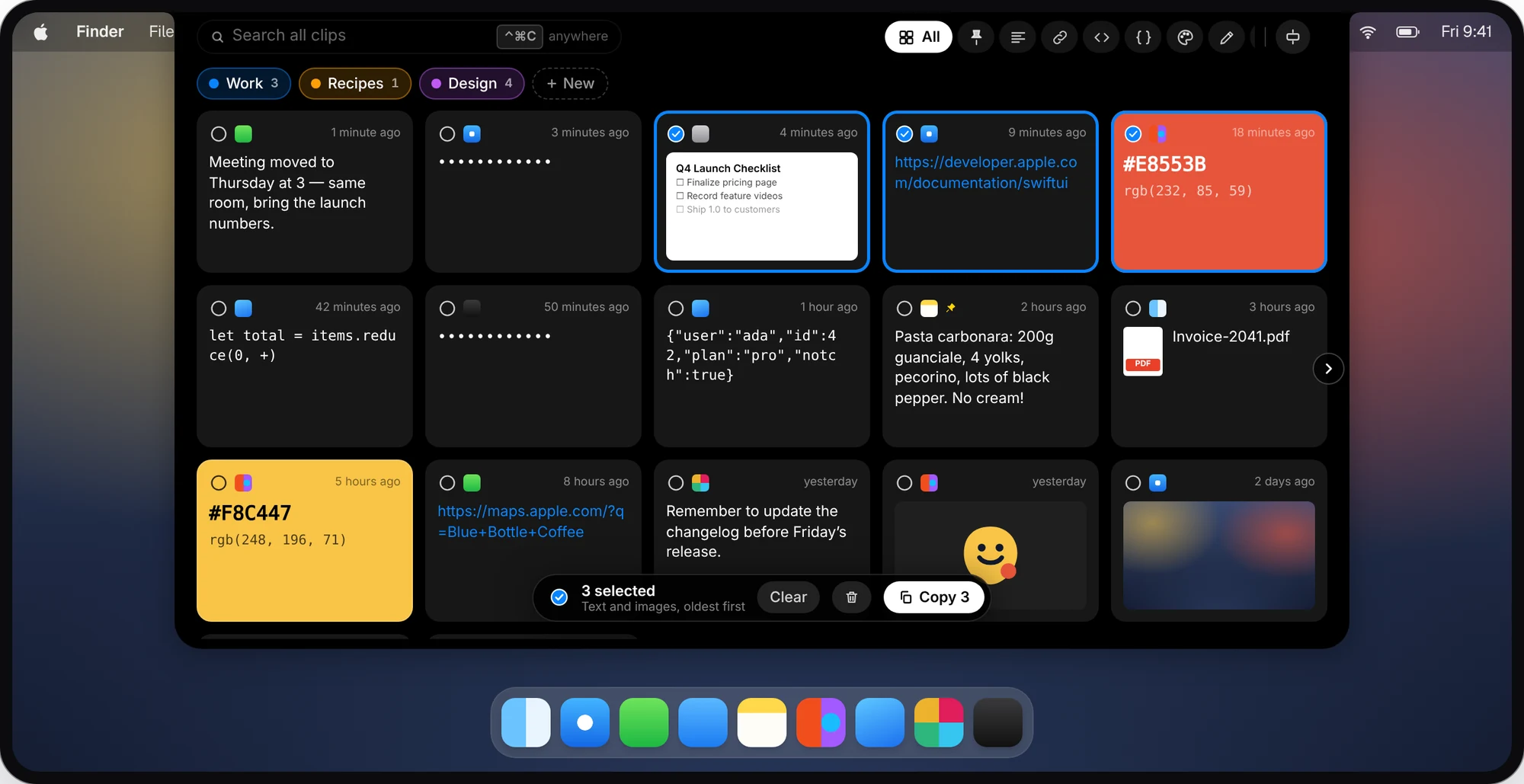
- Smart duplicates. Copy the same thing twice and you get one card, not two.
- Multi-copy. Select several cards, say a quote, a link and a screenshot, and copy them together. They paste in the order you copied them, text and images side by side.
- JSON formatter. A messy API payload becomes readable in one click.
Lives in the notch, opens in a flash
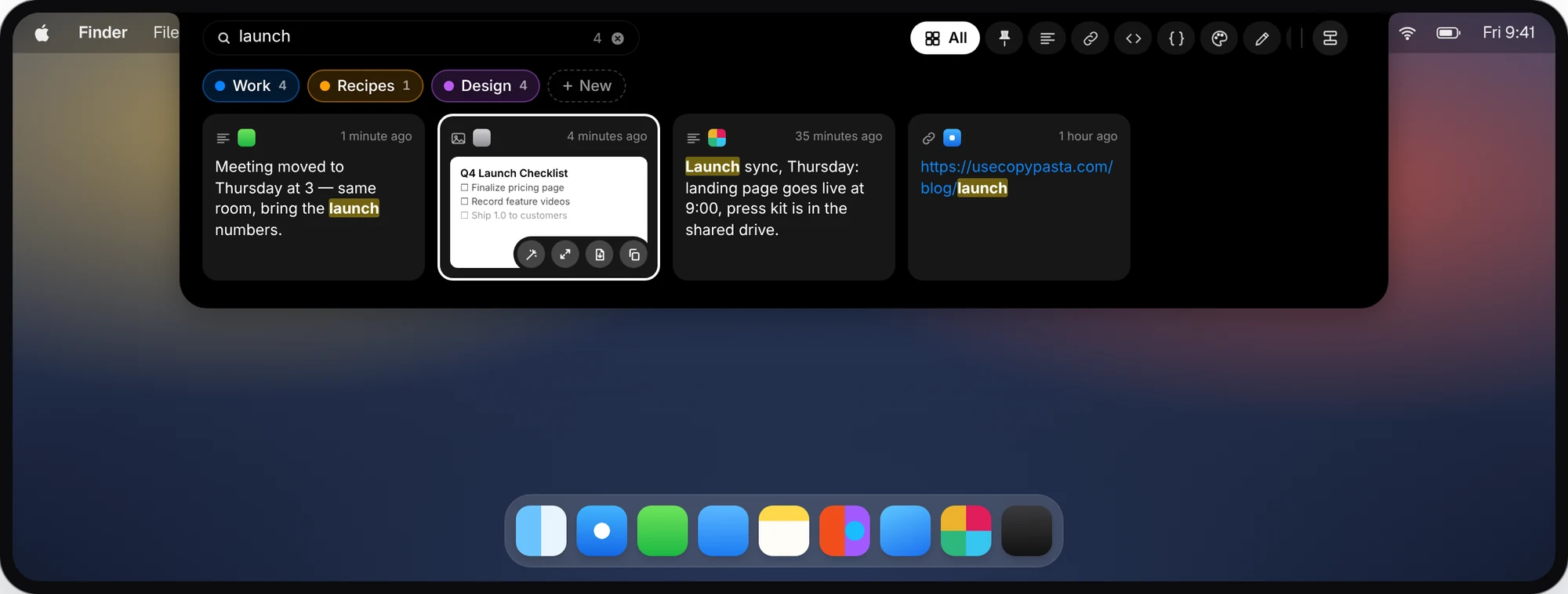
Move your pointer to the notch at the top of the screen, or press ⌃⌘C from any app. CopyPasta drops down right where your eyes already are. Start typing and the search begins instantly, while category tabs narrow things down. You decide how quickly it opens when you hover, so it never gets in the way when you’re just reaching for the menu bar.
Already know what you want? ⌃⌘1 to ⌃⌘0 paste one of your ten most recent clips from any app, without opening CopyPasta at all.
No notch? No problem. On Macs and displays without one, CopyPasta places a virtual notch in the middle of the menu bar.
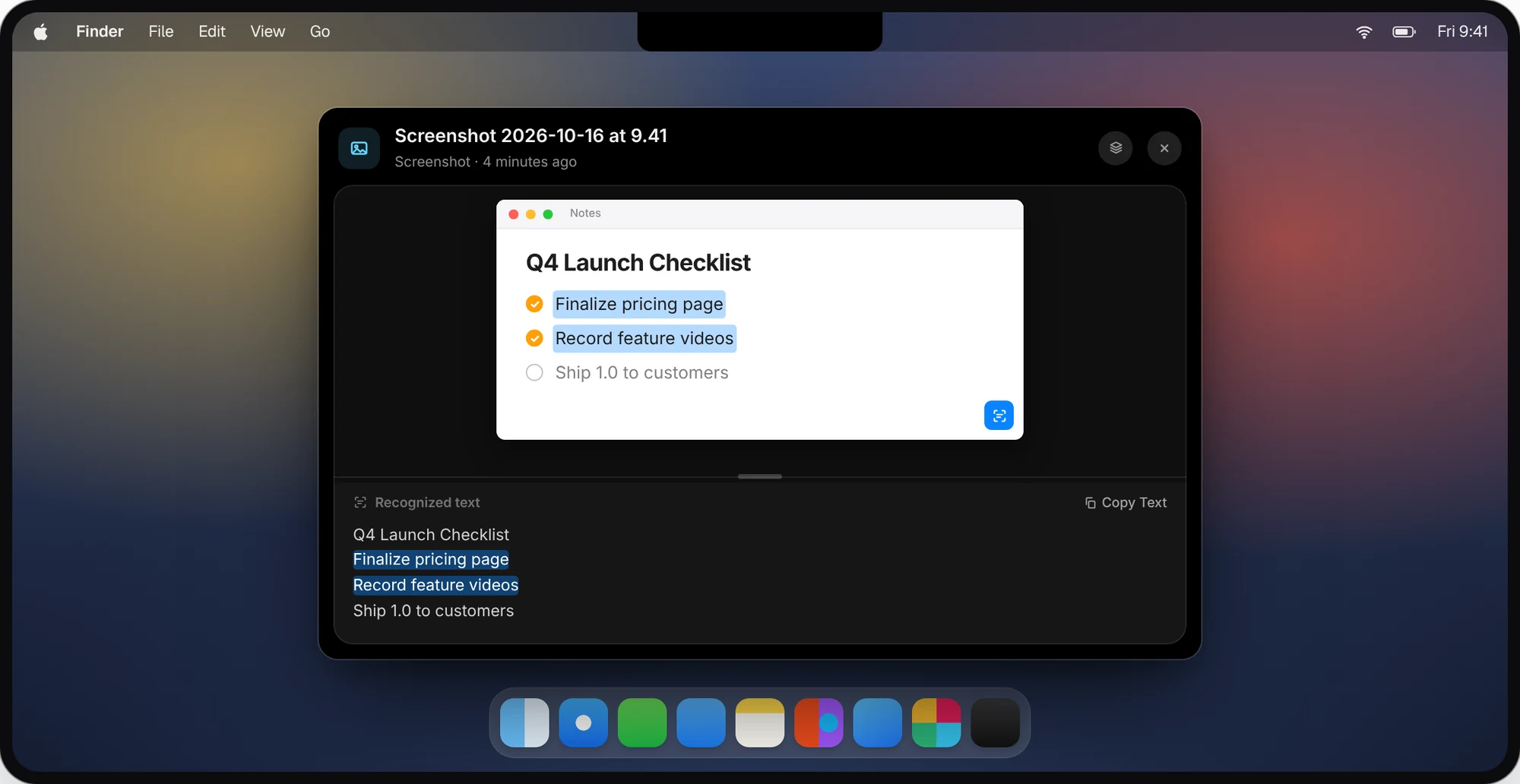
Find screenshots by the text inside them
CopyPasta reads the text in every screenshot using Apple’s on-device Vision framework. You can select it, copy it, and find the screenshot later by searching for any word that appears in it. That error message you screenshotted last week is one search away.
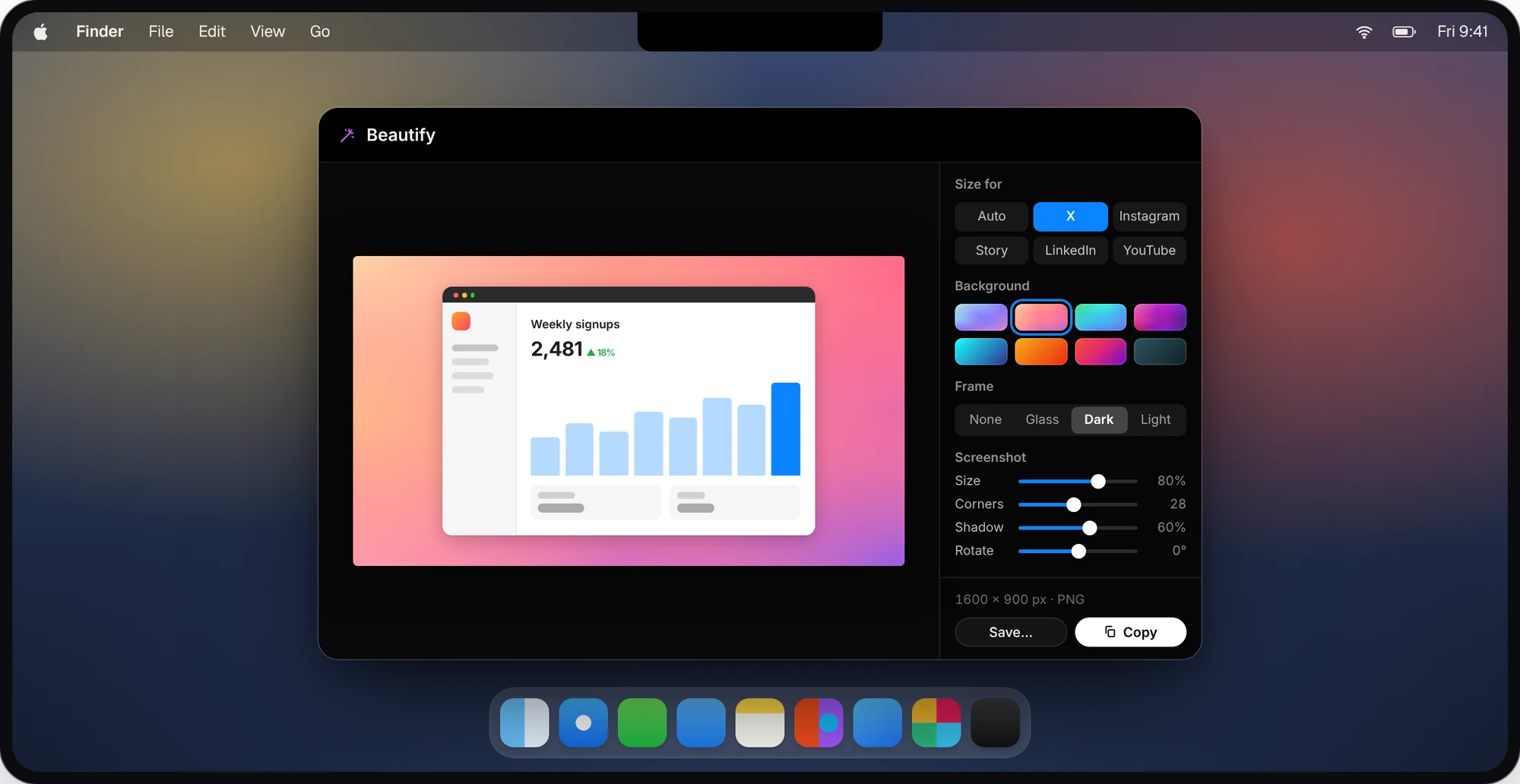
Turn screenshots into images ready to post
Turn any screenshot into a polished image in seconds. Set its position and size, pick a background pattern, choose a preset sized for your favorite social platform, then copy the result and paste it anywhere.
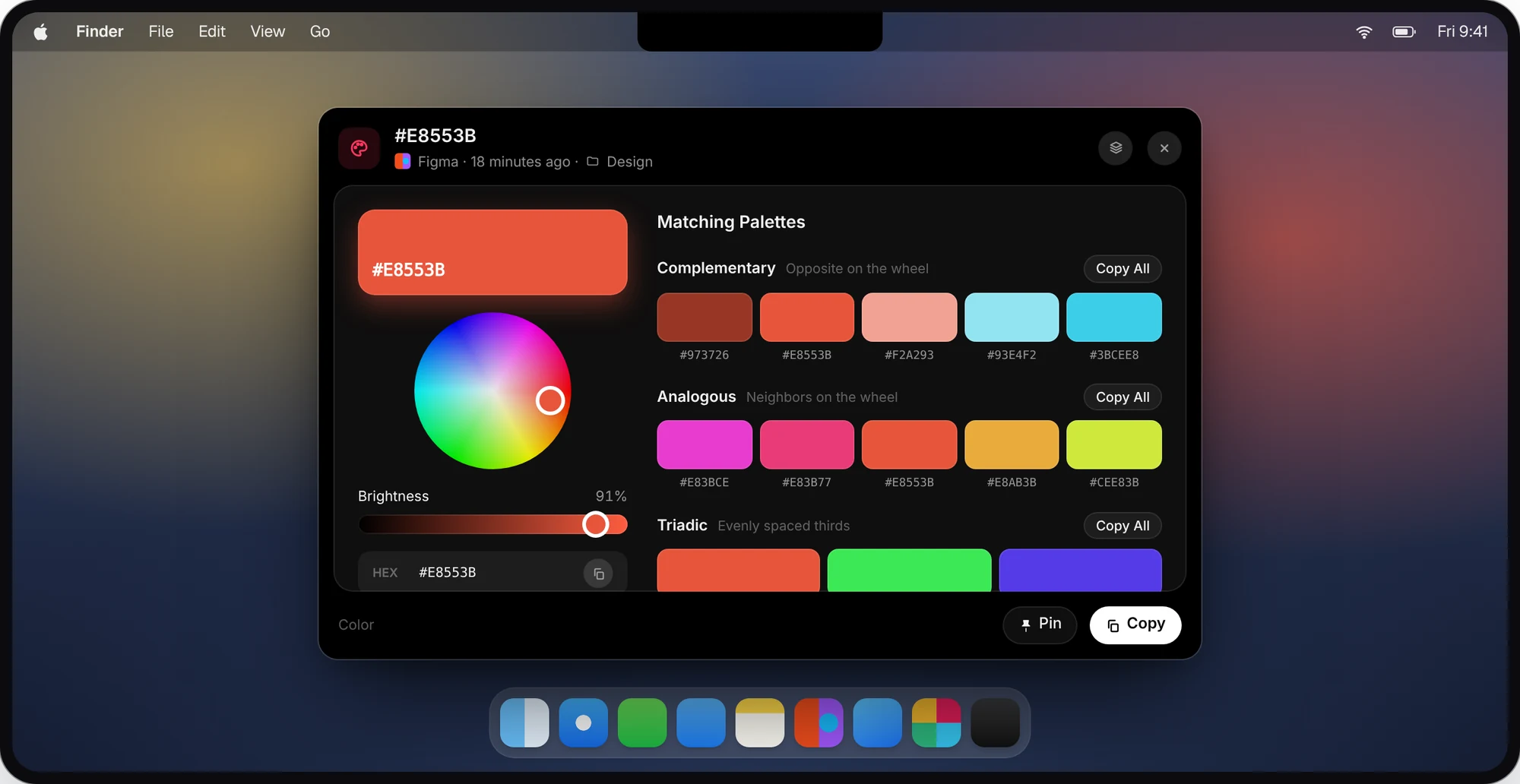
Colors you can fine-tune and build palettes from
Copy a hex or RGB value and it shows up as a card filled with that color. Open it to fine-tune it on a color wheel and adjust its brightness, copy it in the format you need, and browse matching palettes that go with it. Click a swatch to copy its hex.
Every card opens into a real Mac window
Click a card to open it in a proper macOS window, built for what’s inside. Colors show their values, a color wheel and matching palettes. Images show their recognized text, code is highlighted, JSON can be viewed formatted or as the original, links open in your browser, and files are one click from Finder. Need it as a reference while you work? Keep the window floating above everything else.
Categories and pins for what you reuse
Create, rename and delete your own categories right from the popup, and drag a card onto a category to file it. Anything you file in a category is kept permanently. It’s never pruned along with your old history, no matter how short you set it.
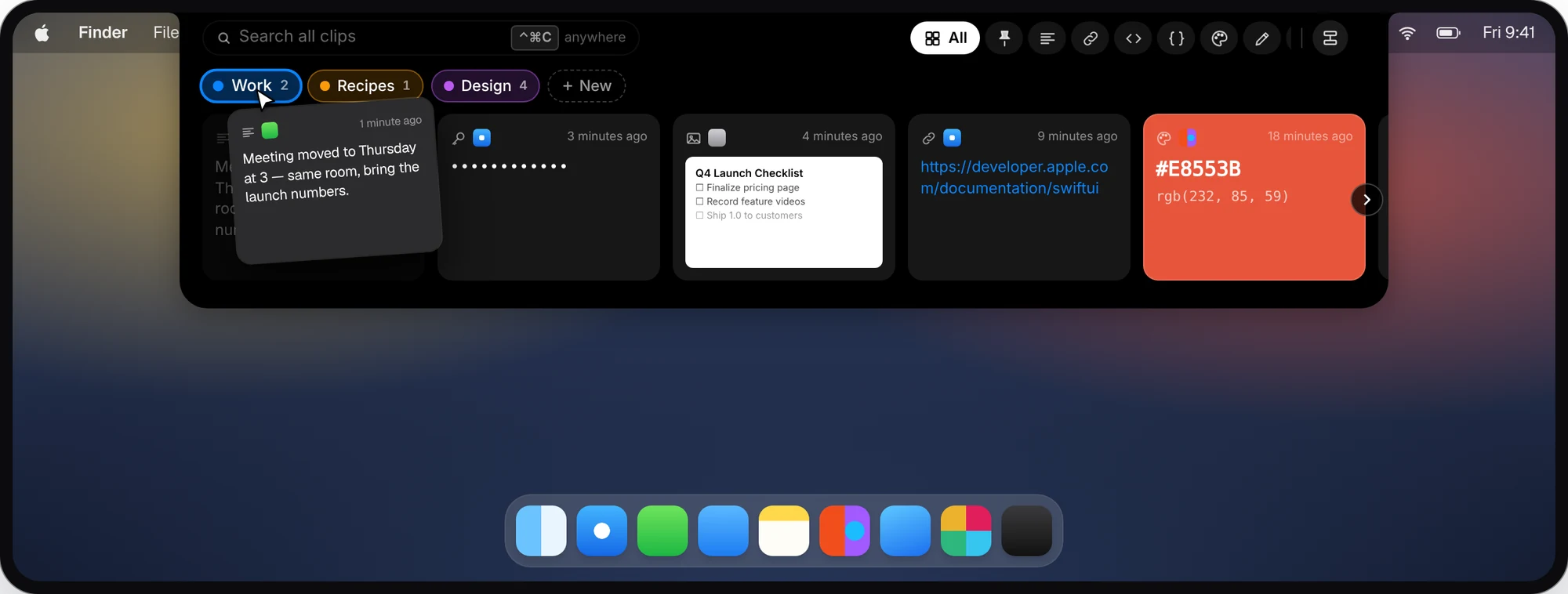
For the things you paste every day, like your address, a sign-off or a snippet of code, pin the card. Pinned clips get their own tab and are never cleared.
Your clipboard stays private
Your clipboard holds passwords, addresses, bank details and private notes. CopyPasta treats it that way:
- Encrypted on your Mac. Your history is encrypted with AES-256, and the key is kept in your Keychain.
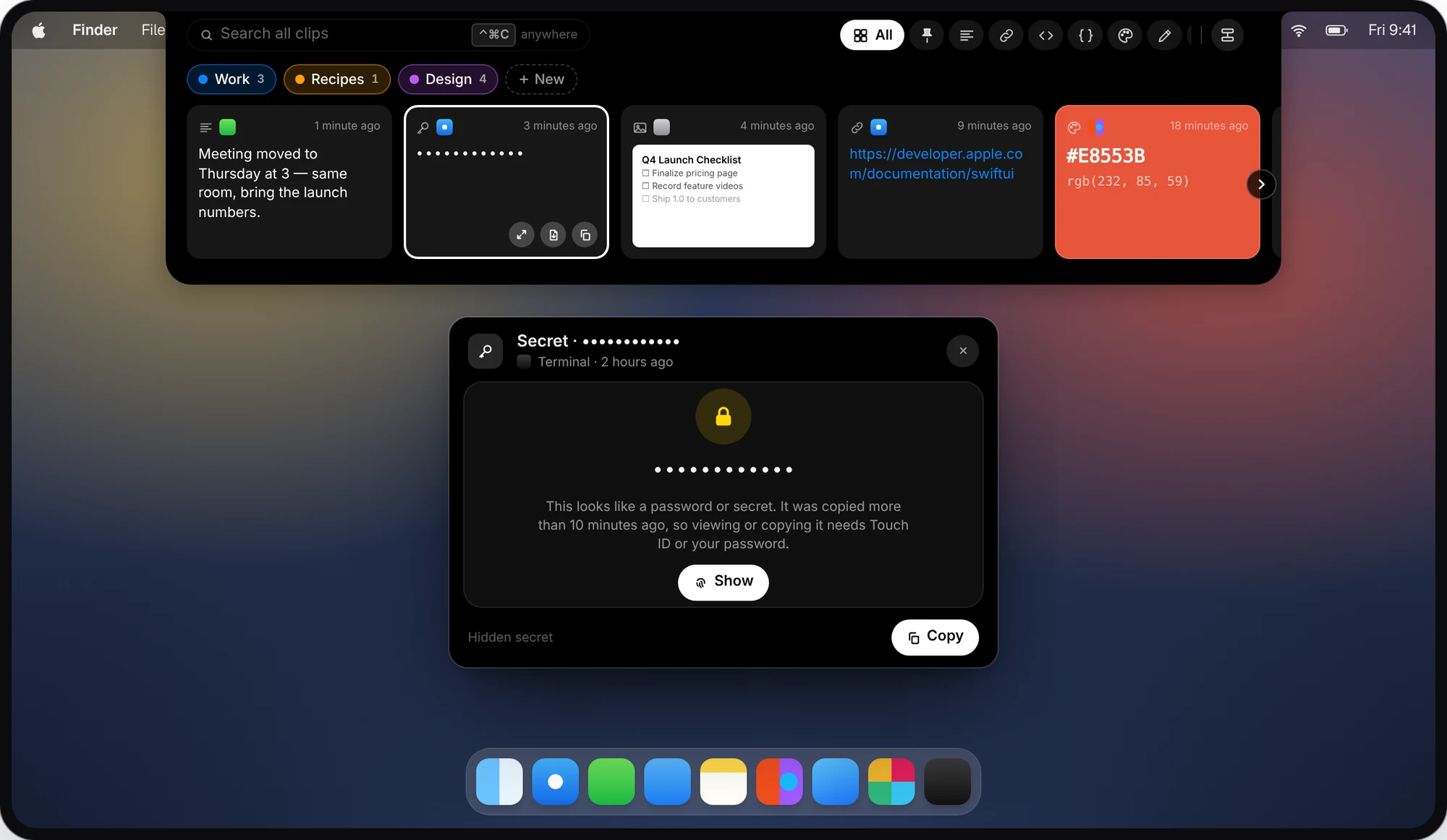
- Secrets stay hidden. Anything that looks like a password, API key or token is detected and masked automatically. If something was hidden by mistake, mark it as not a secret.
- Touch ID to look back. Viewing anything copied more than 10 minutes ago requires your Mac password or Touch ID.
- You choose what’s saved. Pause capture from the menu bar icon whenever you like, tell CopyPasta to ignore certain apps for good, and copies that password managers mark as private are never saved.
- On-device intelligence. Text recognition runs on your Mac, and Apple Intelligence handles summaries and rewrites.
- Your iCloud, your data. Sync between your Macs goes through your own iCloud account, and your history stays encrypted there too. There’s no CopyPasta account and no CopyPasta server holding your history.
- No analytics. The only things CopyPasta sends are your license key when you activate it, and update checks.
Use it without touching the mouse
Everything in the popup works without the mouse, so your hands stay where they are:
- ⌃⌘C opens CopyPasta from any app, and typing starts a search.
- Arrow keys move between cards, and ⇧← or ⇧→ extends the selection. ⌘A selects every card.
- ↩ pastes straight into the app you were using, and ⌘C copies the selection.
- Space opens the highlighted card in its own window.
- ⌘1 to ⌘9 paste the first nine cards instantly.
- ⇧⌘↩ opens a link in your browser, and ⌘⌫ deletes the selection.
- Esc hides the popup.
Set it up the way you like
Choose the card size, how quickly the popup opens and how much history to keep, from 500 clips to forever. Turn the notch on or off, and launch CopyPasta at login. It syncs across your Macs with iCloud and updates itself quietly in the background, so you always have the latest version. You can see what changed in each update on our releases page.
CopyPasta runs on macOS 15 Sequoia or later, on every Mac, with or without a notch.
Try it free, pay once
CopyPasta is free to try for 7 days with every feature unlocked. No account and no credit card needed. When the trial ends, your history stays right where it was. When you’re ready, buy a license once: no subscription, ever, and lifetime updates included. Pick a license for one Mac, three Macs or five Macs, and your key arrives by email right away. Getting a new Mac? Deactivate the license in Settings on the old one and activate it on the new one.
Copy once. Paste forever. Get CopyPasta.